
Custom Endpoints
Beyond the built-in cloud providers, Jan can connect to any endpoint that speaks the OpenAI or Anthropic wire format. This covers self-hosted servers (vLLM, Ollama, LocalAI, llama.cpp server, TGI), gateways and proxies (LiteLLM, OpenRouter-style routers, Amazon Bedrock proxies), and any provider that exposes an OpenAI- or Anthropic-compatible API.
When to use a custom endpoint
- You run your own inference server (vLLM, Ollama, LocalAI, TGI, llama.cpp
llama-server) on your machine or LAN. - You use a gateway/proxy (LiteLLM, a Bedrock or Vertex proxy, an internal company gateway).
- You have a provider that isn't in Jan's built-in list but offers an OpenAI- or Anthropic-compatible API.
Add a custom provider
Step 1: Open the Add Provider dialog
- Navigate to Settings () > Model Providers.
- Click the Add Provider () button next to the providers list.
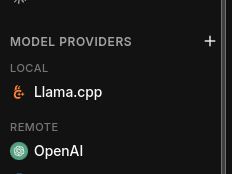
Step 2: Choose the API format
In the Add Custom Provider dialog, pick the API format your endpoint speaks:
- OpenAI-compatible (default) — for vLLM, Ollama, LocalAI, TGI, llama.cpp server, LiteLLM in OpenAI mode, and most third-party providers.
- Anthropic-compatible — for endpoints that expose the Anthropic Messages API (Claude proxies, LiteLLM in Anthropic mode, Bedrock/Vertex Anthropic gateways).
The API format determines how Jan formats requests and parses responses. Picking the wrong one will cause requests to fail even if the base URL and key are correct. If you're unsure, your endpoint's docs will say whether it's "OpenAI-compatible" or exposes the "Anthropic Messages API".
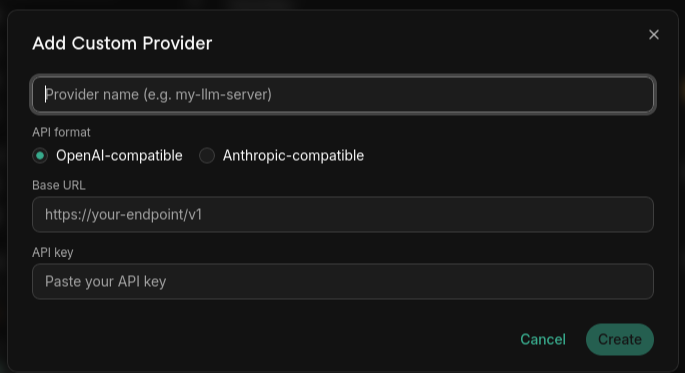
Step 3: Fill in the details
| Field | Description |
|---|---|
| Provider name | A unique name for this provider (shown in the model selector). |
| Base URL | The root of the API. For OpenAI-compatible endpoints this is usually the URL ending in /v1 (e.g. http://localhost:8000/v1). For Anthropic-compatible endpoints, use the base your gateway documents. |
| API key | Required. For local servers that don't check auth, enter any non-empty placeholder (e.g. sk-no-key). |
Click Create to add the provider.
Base URL must include the version path your server expects. A common mistake is entering
http://localhost:8000 instead of http://localhost:8000/v1 for OpenAI-compatible servers — the
request will 404. Trailing slashes are stripped automatically.
Step 4: Add models
Jan tries to fetch the available models from {base_url}/models when you save. If your endpoint
doesn't expose that, add models manually: in the provider's Models section, click the +
button and enter the model ID exactly as your server expects it (e.g. llama-3.1-8b-instruct).
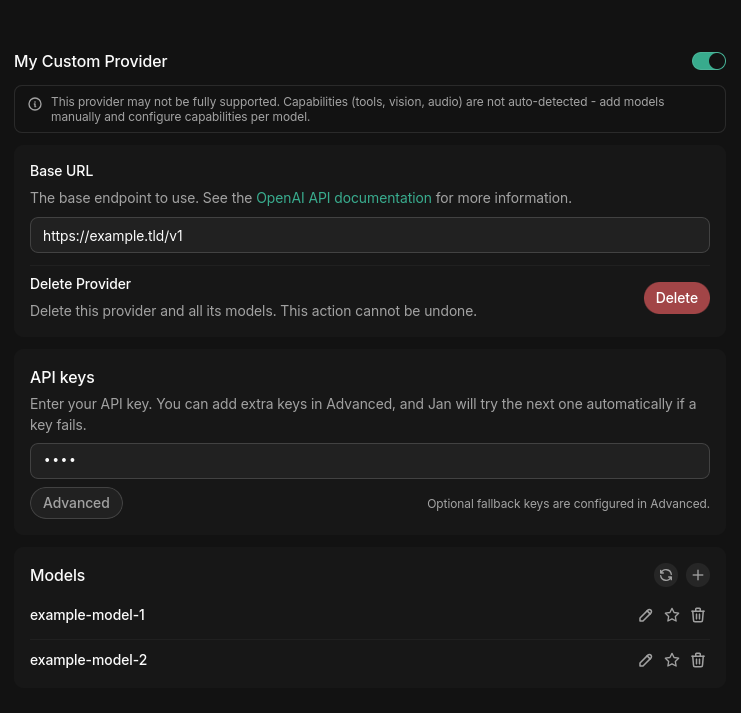
Custom providers aren't capability-detected automatically — Jan can't infer whether a model supports tools, vision, or audio. Add each model manually and configure its capabilities per model.
Example base URLs
| Server / gateway | API type | Typical base URL |
|---|---|---|
| vLLM | OpenAI-Compatible | http://localhost:8000/v1 |
| Ollama | OpenAI-Compatible | http://localhost:11434/v1 |
| LocalAI | OpenAI-Compatible | http://localhost:8080/v1 |
llama.cpp llama-server | OpenAI-Compatible | http://localhost:8080/v1 |
| Text Generation Inference (TGI) | OpenAI-Compatible | http://localhost:8080/v1 |
| LiteLLM (OpenAI mode) | OpenAI-Compatible | http://localhost:4000/v1 |
| LiteLLM (Anthropic mode) | Anthropic-Compatible | http://localhost:4000 |
Ports and paths depend on how you launched the server — check its startup logs. The values above are defaults and may differ in your setup.
Use a different llama.cpp version
Jan's built-in llama.cpp engine (Settings > Llama.cpp) is the version that ships with the app, and it updates together with Jan. If a model misbehaves on that version but works on another one, for example after a llama.cpp regression on your GPU, run the llama.cpp version you need yourself and connect it as a custom endpoint. This works today, with any llama.cpp build.
Step 1: Get llama.cpp
Open ggml-org/llama.cpp releases (opens in a new tab) and pick a numbered build such as b11514; GitHub marks these as pre-releases, and the release marked "Latest" has no binaries. Download the llama-<build>-bin-… archive for your system and GPU and unpack it, for example:
- Windows:
llama-b11514-bin-win-vulkan-x64.ziporllama-b11514-bin-win-cuda-13.4-x64.zip. CUDA builds also need the matchingcudart-llama-bin-win-cuda-13.4-x64.zip, unpacked into the same folder. - Linux:
llama-b11514-bin-ubuntu-vulkan-x64.tar.gzorllama-b11514-bin-ubuntu-cuda-13.4-x64.tar.gz. - macOS (Apple Silicon):
llama-b11514-bin-macos-arm64.tar.gz.
Step 2: Start llama-server with your model
llama-server -m /path/to/model.gguf --alias my-model --port 8080 -ngl 99 --jinja
--aliasis the model name Jan will show. Without it, the model is listed under its full file path.-ngl 99offloads every layer to the GPU; lower it if the model doesn't fit. Recent builds default toauto, older ones to CPU only.--jinjauses the model's own chat template, which tool calling needs. It is the default in recent builds and harmless to pass.- Use a port other than 1337, which Jan's own Local API Server uses by default.
Models you downloaded in Jan are under your Jan data folder, in llamacpp/models/<model>/model.gguf.
Step 3: Add it to Jan
Follow Add a custom provider with OpenAI-compatible, base URL http://localhost:8080/v1 and any placeholder API key (e.g. sk-no-key). Jan lists the model under its --alias; pick it in the chat's model selector.
To let the model call tools, click the pencil next to it in the provider's Models list and turn on Tools under Capabilities. Jan can't detect a custom provider's capabilities on its own.
A model served this way is not managed by Jan: its download, load settings and GPU offload are whatever you pass to llama-server, and Jan's per-model llama.cpp settings don't apply to it.
API key fallbacks
For remote providers you can configure multiple API keys. Jan uses the primary key first and
automatically retries with the next key only on HTTP 401 (unauthorized), 403 (forbidden),
or 429 (rate limited). Other errors do not trigger a retry.
Configure fallback keys
- Open the provider in Settings > Model Providers.
- In the API keys section, click Advanced.
- Add keys with + Add key as numbered entries —
#1is the primary,#2and onward are fallbacks. - Click Test keys to validate each one. Jan calls
{base_url}/modelsper key and reports the result: OK, Invalid/revoked (401), Forbidden (403), Rate limited (429), or Network error.
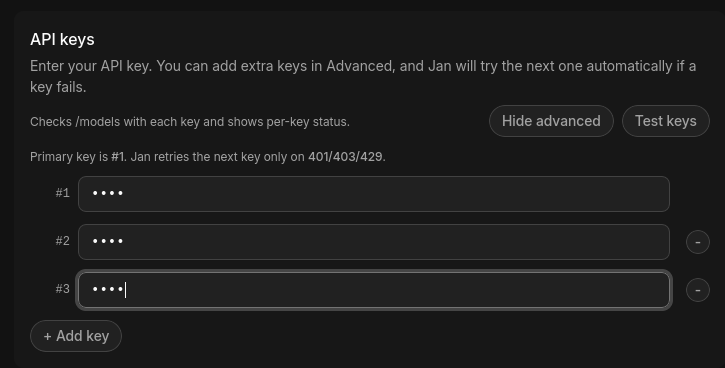
If all keys fail with 401/403, Jan reports that key rotation is exhausted — every configured key is bad or unauthorized. A persistent 429 across all keys means you're being rate limited; wait or add more keys.
Sampling parameters
For local engines (llama.cpp, MLX) and custom providers, Jan exposes the full set of sampling parameters (temperature, top-K, top-P, min-P, repetition penalty, and more). For built-in cloud providers these controls are hidden, because those providers manage or ignore most samplers.
Custom endpoints are permissive: Jan sends whatever samplers you set, but your server may silently ignore the ones it doesn't support. If a parameter seems to have no effect, check whether your backend implements it.
Troubleshooting
| Symptom | Likely cause | Fix |
|---|---|---|
| Requests fail immediately | Wrong API type for the endpoint | Match OpenAI- vs Anthropic-Compatible to what your server speaks |
404 on every request | Base URL missing /v1 (or wrong path) | Add the version path your server expects |
401 / 403 | Bad or missing API key | Verify the key; for keyless local servers enter any non-empty placeholder |
429 | Rate limited | Wait, or add fallback keys |
| Connection refused / network error | Server not running, wrong host/port, or firewall | Confirm the server is up and reachable from your machine |
| No models listed | Endpoint doesn't expose /models | Add the model ID manually |
For deeper diagnosis, check Jan's logs.
Need more help? Join our Discord community (opens in a new tab).